
Product Documentation
A complete user manual for every Compares-Text tool, with step-by-step instructions and interface screenshots.
1. Getting Started
Compares-Text runs entirely in your web browser — there is nothing to install and no account to create. Choose a tool from the navigation bar at the top of the page, provide two inputs (paste text or upload files), and click the Compare button. Results appear instantly below.

The tool navigation bar — select any comparison tool here.
2. Text Comparison
The Text Compare tool is the default view. It compares two blocks of text entirely within your browser.
- Paste your original text into the 1st Version box.
- Paste the revised text into the 2nd Version box.
- Click Compare Text.
Results are shown side by side: additions in green, deletions in red, and modified segments highlighted at the character level so you see precisely what changed.

A text comparison result with word- and character-level highlighting.
3. Document Comparison (PDF / DOCX / XML / JSON)
Select the PDF / DOCX / XML tool, then upload two documents of the same type.
- Drag and drop each file onto its upload zone, or click to browse.
- The filename appears once a file is selected.
- Click Compare Documents.
Text is extracted from both files — including tables — and shown as a line-by-line diff. Scanned PDFs are processed with OCR automatically. If the two documents are identical, a green banner confirms it.

Upload zones showing two selected files ready to compare.
4. Excel & CSV Comparison
The Excel tool presents results in two clearly separated sections:

- Header Comparison — a column-by-column table showing whether any headers were added, removed or renamed.
- Data Comparison — the sheet data with changed cells highlighted. Hover any changed cell to see its previous and new value.
Excel results: header comparison above, data comparison below.
5. Developer Tools
Code Compare
Choose your language from the dropdown, then paste or upload two versions of your code. Toggle Ignore Comments and Ignore Whitespace to focus on logic changes. The result is a git-style diff.
Database Schema Compare
Paste or upload two SQL schema files. The tool reports added and removed tables, plus column, index and foreign-key changes for tables that exist in both.
API Response Compare
Enter two endpoint URLs and choose GET or POST. The result diffs the response body, headers, status codes and response time. Internal/private URLs are blocked for security.
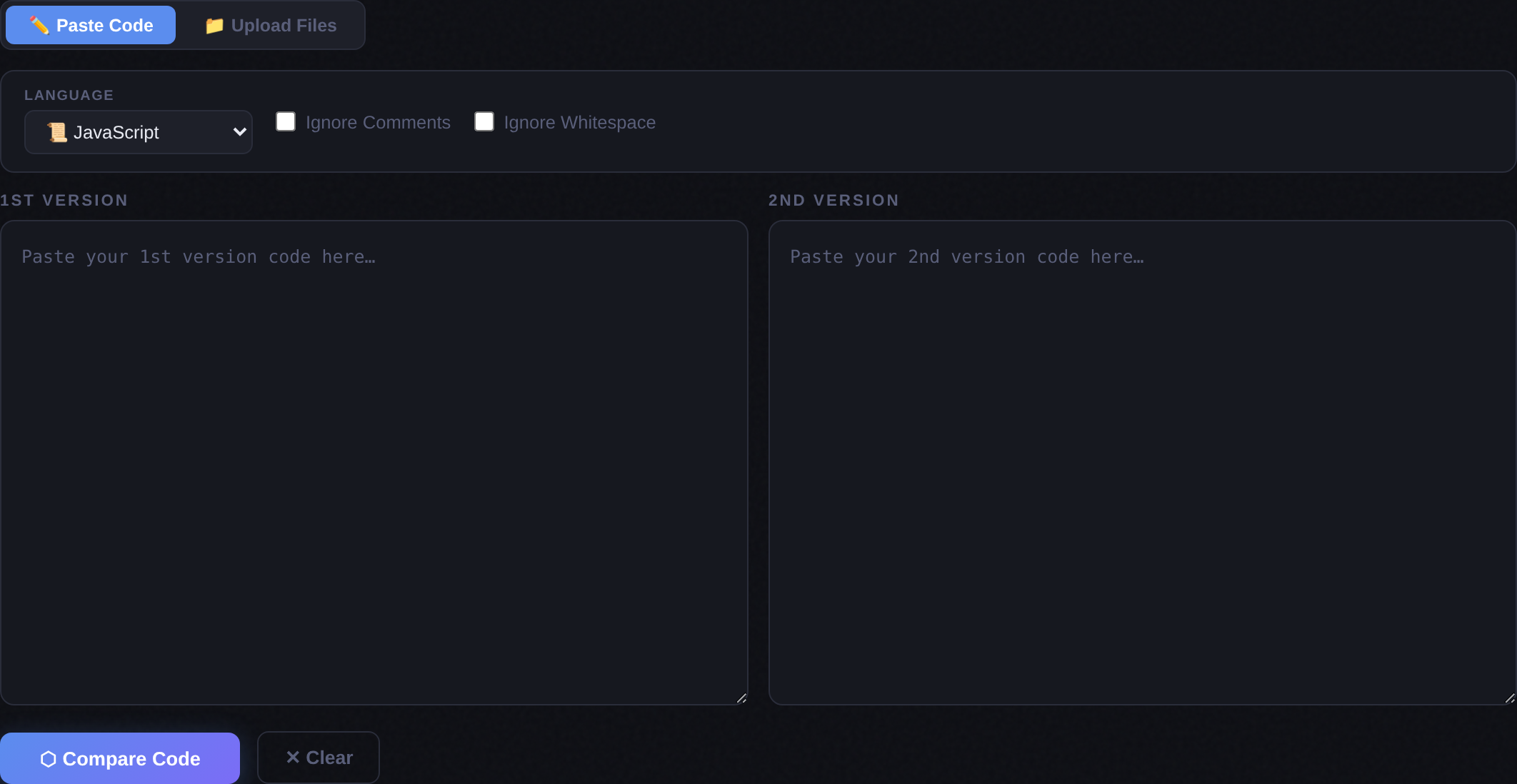
Code Compare with the language selector and ignore-comments / ignore-whitespace options.
6. Reading Results & Jump-to-Diff
Across the text, document, code, schema, API, log, website, Excel and ZIP tools, a jump-to-diff control (↑ ↓) appears above the results whenever differences exist. Use it to step through every change in order without scrolling manually. A counter shows your position (for example, "3 / 12").
🖼️ A note on screenshots: the images above are captured from the live Compares-Text interface. If a screenshot ever looks different from what you see, the site has been updated — the on-screen tool is always the source of truth. Spotted something out of date? Let us know.